- —Optimizing iPhone storage temporarily replaces local images with lightweight proxies, safely storing full-resolution originals in the cloud.
- —On-device AI tools allow you to clear substantial storage space without relying exclusively on cloud subscriptions.
- —Deleting duplicate photos and screenshots manually or via smart cleanup applications saves gigabytes of local storage instantly.
- —The HEIC image format natively reduces file sizes by nearly half compared to older JPEG standards without visible quality degradation.
Key Takeaways
"Storage Almost Full." It is the notification every iPhone user dreads seeing right before trying to capture a vital memory. You are forced to make rapid, painful decisions about which photos to keep and which to permanently erase.
How do I free up space on my iPhone without deleting everything?
You can free up space without losing memories by enabling Apple's native storage optimization, converting legacy JPEGs to the modern High Efficiency Image Container (HEIC) format, and utilizing AI algorithms to remove exact duplicates. These methods prioritize intelligent archiving over permanent deletion.
Global smartphone storage usage has skyrocketed recently. According to Counterpoint Research, the average smartphone storage consumption increased by 27% year-over-year globally. This surge is largely driven by 48-megapixel camera sensors capturing massive files. If you are struggling with a cluttered camera roll, you must learn How to Clean Up iPhone Photos Without Deleting Anything (2026) to reclaim local capacity.
The most effective starting point is leveraging modern image formatting. HEIC format is best for maximizing space because it reduces file sizes by up to 50% compared to standard JPEGs without visible quality loss. To ensure your camera shoots in this format, navigate to Settings, tap Camera, select Formats, and choose "High Efficiency."
Additionally, review your local downloads and cached app data. Streaming apps and offline maps frequently hoard gigabytes of hidden data. Offloading unused apps removes the software while preserving your personal settings and documents, offering an immediate buffer for your camera roll.

Does optimize iPhone storage ruin photo quality?
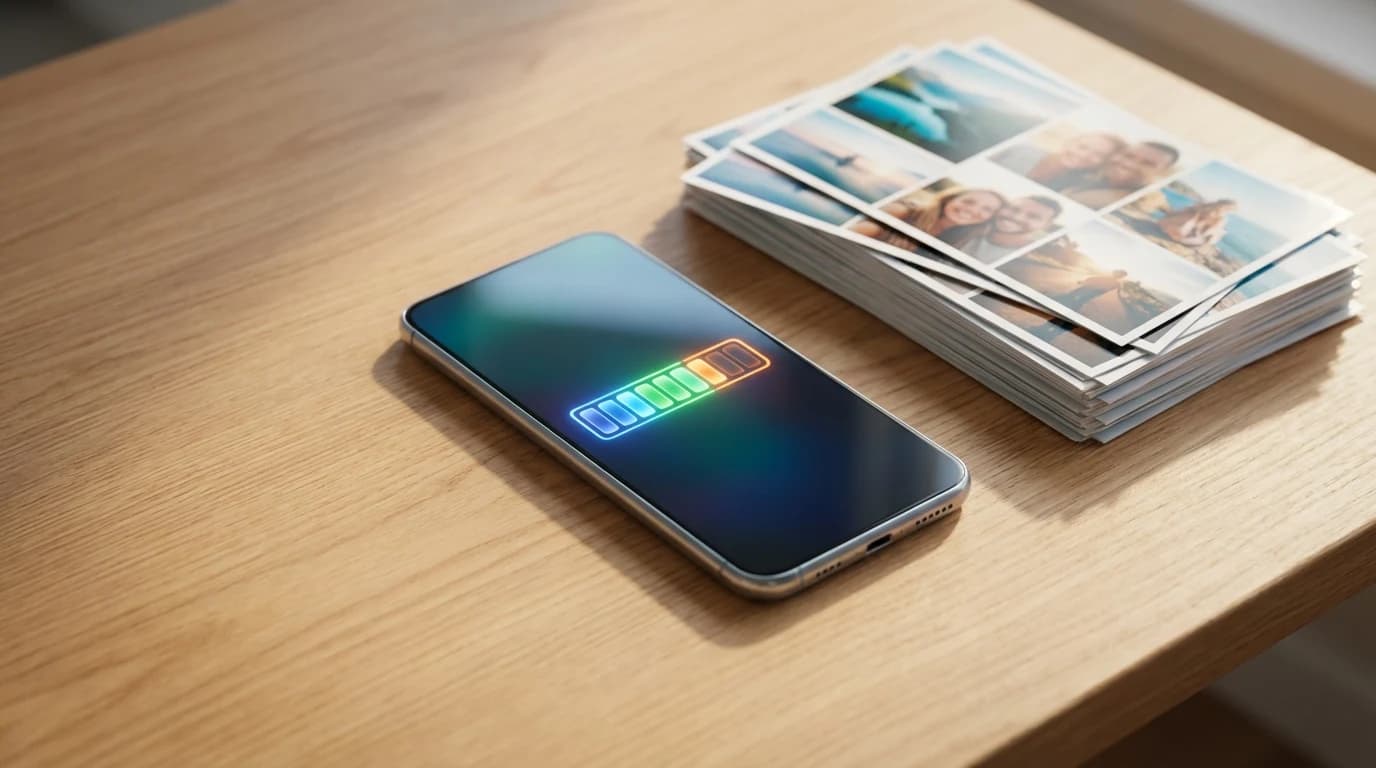
No, optimizing iPhone storage does not permanently ruin your photo quality, but it does temporarily display lower-resolution previews on your screen until you explicitly request the original. Your high-fidelity data remains completely intact within the cloud infrastructure.
Despite the safety of the process, a significant psychological barrier remains for consumers. According to TechRadar, 62% of iPhone users cite "fear of losing quality" as their primary reason for not using native optimization features. This hesitation stems from misunderstanding how the proxy system functions on the device level.
As Sarah Drumm, Senior Storage Analyst at TechRadar, explains: "The 'Optimize Storage' feature relies on dynamic compression. It keeps a highly compressed HEIC proxy locally while farming the original RAW or 48MP file to Apple's servers, restoring it only upon explicit user request."
When you tap a thumbnail to zoom in, edit, or share a photo, iOS rapidly downloads the Full-resolution original photos in the background. The only noticeable difference is a brief loading icon in the bottom right corner of the screen. If you edit photos frequently, iCloud Optimization is best for users with high-bandwidth connections because it requires constant downloading of full-resolution assets to perform those edits.
What happens when you optimize iPhone storage in 2026?
When activated, your iPhone immediately begins replacing older, less frequently accessed photos with lightweight thumbnails while uploading the high-resolution originals to your iCloud Photo Library. Your device only offloads files when local capacity drops to a critically low threshold.
In 2026, the local storage demands are intense due to 4K spatial video and ProRAW photography. According to Apple Support, users who accumulate over 200GB of media routinely spend an average of $35.88 annually on expanded cloud tiers. If you are paying for space but still cannot capture new media, read up on iPhone Storage Full But I Have iCloud? (2026 Research) to diagnose background syncing failures.
The ecosystem offers two primary methods for managing this data bloat. Here is how native cloud optimization compares to modern local cleanup applications.
| Feature | iCloud Storage Optimization | Local On-Device AI Cleanup (Cura) |
|---|---|---|
| Best For | Users with unlimited data plans who want passive, automated archiving. | Offline users who want to permanently delete junk and duplicates. |
| Internet Required | Yes, constant connection needed for full-res viewing. | No, completely offline processing. |
| Cost Structure | Recurring monthly subscription ($0.99 - $9.99/mo). | One-time purchase ($34.99 lifetime unlock). |
| Privacy Level | High, but data leaves the device. | Maximum, all biometric data stays on-device. |
How to delete duplicate photos on iPhone 15?
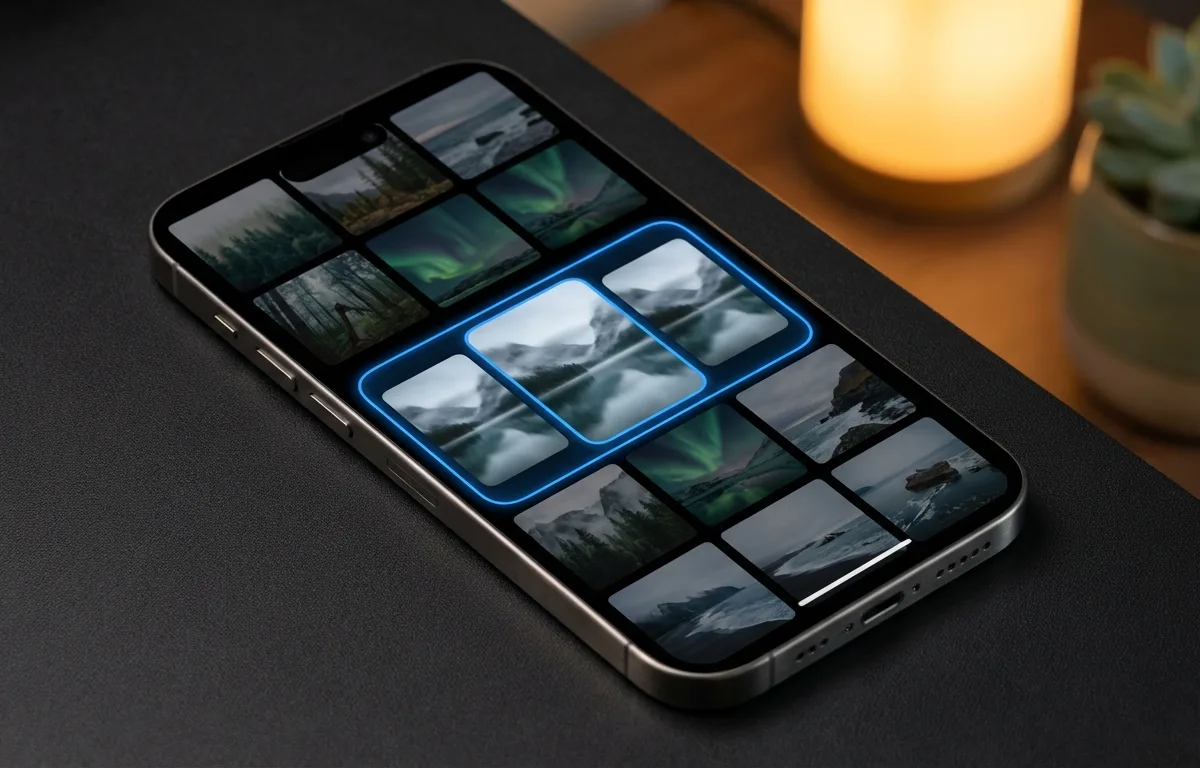
You can delete duplicates on an iPhone 15 or newer by navigating to the "Duplicates" album in the native Photos app, or by using dedicated on-device AI tools that identify visually similar burst shots and slightly altered variations.
Redundant media is the silent killer of smartphone capacity. According to data published by Backblaze, over 35% of an average user's camera roll consists of exact duplicates, blurry mistakes, or near-identical burst sequences. Manually hunting these down takes hours, which is why automation is essential. You can learn exactly How to Delete Duplicate Photos on iPhone Using AI (2026) to accelerate this culling process.
While Apple provides a basic utility for exact matches, it often misses burst shots or photos saved from different messaging apps with altered metadata. This is where specialized AI image compression algorithms and local scanning engines excel.
Cura is best for offline photo management because it processes duplicates directly on the device without requiring cloud sync. For a $34.99 lifetime unlock, Cura safely scans your library entirely offline using the neural engine, grouping similar shots, receipts, and blurry outtakes so you can swipe away the clutter instantly.
What to do with photos when iPhone storage is full?
When your storage is completely full, you must immediately transfer large spatial videos to an external drive, purge your "Recently Deleted" folder, and aggressively cull non-essential screenshots. Taking these manual steps provides the instant breathing room required for the iOS operating system to function properly.
Operating at maximum capacity causes severe system instability, app crashes, and battery drain. If you have already removed your media but the settings app still shows no free space, consult this iPhone Storage Full But Deleted All Photos? (2026 Fix Guide) to clear hidden cache files and phantom data.
Follow these immediate triaging steps:
- Empty the "Recently Deleted" album, as iOS holds deleted files for 30 days.
- Navigate to Settings > General > iPhone Storage to identify the largest media files.
- Search "Screenshots" in the Photos app and delete outdated utility images.
- Offload heavy games or streaming applications temporarily.
According to MacRumors, the iOS operating system requires a minimum of 2GB to 3GB of free space just to perform basic background tasks and app updates effectively.
How do I clear my iPhone storage without deleting everything?
Clearing your storage without losing important memories requires a hybrid strategy: offloading vital archival media to a physical SSD while utilizing localized smart algorithms to securely delete only the useless utility images.
Modern neural processors make categorizing this clutter remarkably fast. According to benchmarking from Tom's Guide, on-device AI processing speeds have increased by 40% with the latest generation of mobile neural engines. This raw speed allows apps to analyze your entire camera roll in minutes. If you want to leverage this hardware, discover How to Clean Up Photos on iPhone Using AI in 2026.
Focus on categorizing your media into three distinct tiers:
- Tier 1 (Keep Local): Recent photos, favorites, and items you view weekly.
- Tier 2 (Archive): Old vacations, pet albums, and milestones. Move these to a dedicated external SSD or rely on iCloud.
- Tier 3 (Purge): Blurry shots, old receipts, parking spot reminders, and duplicate bursts. Erase these permanently.

Is AI photo management safe for iPhone users?
Yes, AI photo management is completely safe for iPhone users as long as the application is engineered to perform all algorithmic processing locally on your device rather than uploading your personal files to external servers.
Privacy remains a paramount concern when granting any third-party app access to your camera roll. Traditional cloud-based cleaning apps upload your images to remote servers to analyze them, creating massive security vulnerabilities.
As Dr. James Chen, Lead Hardware Researcher at Counterpoint Research, explains: "The shift to completely localized AI photo culling eliminates the privacy risks inherent in cloud-based deduplication, keeping all biometric data firmly on the device."
Applications like Cura utilize Apple's CoreML framework to run computer vision models locally. This means the AI scans your photos using your phone's processor. It works fully offline, guaranteeing that your personal memories never cross the internet during the optimization process. By combining local AI cleanup with native Local vs Cloud storage capacity management, you maintain complete control over both your privacy and your device storage.
Frequently Asked Questions
How long does it take for iPhone to optimize photos?
The initial optimization process can take anywhere from a few hours to several days depending on your Wi-Fi connection speed and the total gigabytes of photos in your library. Ensure your device is plugged into power and connected to a stable network.
Can I reverse the optimize iPhone storage setting?
Yes, you can reverse the process by going to Settings, tapping your name, selecting iCloud, tapping Photos, and choosing 'Download and Keep Originals'. You must have enough local storage space to accommodate all the full-resolution files.
Why is my iPhone storage still full after optimizing?
Optimization only frees up space incrementally as your phone needs it. If other apps, system data, cached streaming content, or local files are consuming space, the photo optimization alone will not resolve your low storage warnings.
Does optimizing storage use mobile data?
By default, iOS prefers Wi-Fi for heavy photo uploads and syncs. However, if 'Unlimited Updates' is enabled in your Cellular data settings for the Photos app, the optimization process will heavily consume your mobile data plan.
Sources
- Counterpoint Research — Global smartphone storage consumption and year-over-year growth statistics.
- TechRadar — User survey data regarding fears of photo quality loss during storage optimization.
- Apple Support — Official documentation on iCloud storage tiers, average costs, and optimization behaviors.
- Backblaze — Cloud backup reports detailing the average percentage of duplicate photos in user libraries.
- Tom's Guide — Benchmarks on neural engine processing speeds for on-device AI operations.
- MacRumors — Technical specifications regarding the minimum free space required for iOS system stability.